Disclosure: As an Amazon Associate we earn from qualifying purchases.
Yes, you can successfully print flexible tpu on Ender 3 V3 SE — it just needs slower speeds, tighter retraction, and a clean, well-leveled build plate. The stock direct-drive Sprite-style extruder on this machine gives it a real advantage over older Bowden-tube Ender 3 variants, because the short filament path stops soft TPU from buckling. Out of the box, you'll want to print at 20–30 mm/s, 220–230 °C nozzle, 50 °C bed, retraction reduced to about 1 mm at 25 mm/s, and a freshly cleaned PEI or glass surface. With those four levers dialed in, the V3 SE handles 95A shore-hardness TPU cleanly, and even softer 85A spools become reliable once you slow down outer walls. This guide walks through every setting, prep step, and troubleshooting fix you'll need for your first successful flexible print in 2026.
Why the Ender 3 V3 SE handles TPU better than older Enders
The original Ender 3 shipped with a Bowden setup, where the extruder motor sits on the frame and pushes filament through a long PTFE tube to the hotend. That long path is fine for stiff PLA, but soft TPU compresses inside the tube, springs back unpredictably, and quickly turns into a tangled mess in the extruder gears. The Ender 3 V3 SE moved to a direct-drive extruder mounted right above the hotend, with only a few millimeters of filament path between the gear and the melt zone. That short distance is exactly what TPU needs: less compression, less retraction drama, and almost no filament buckling.
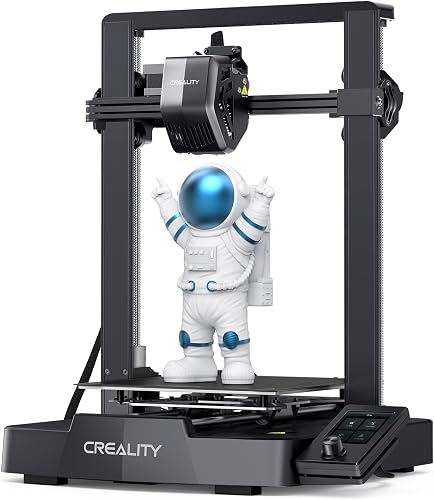
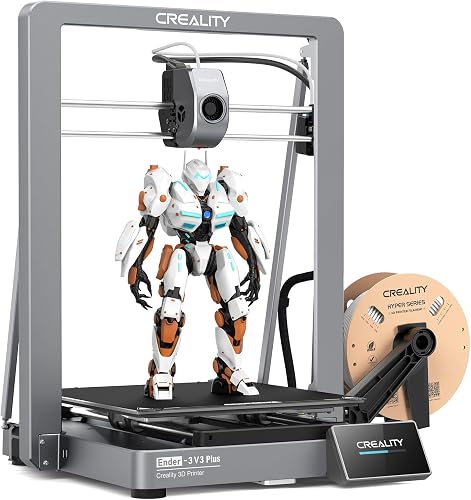
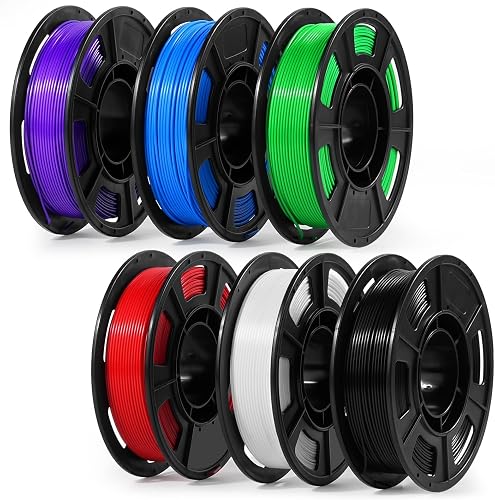
The V3 SE also added CR-Touch automatic bed leveling, a dual Z-axis screw, and improved nozzle temperature stability. None of those upgrades were specifically aimed at flexible filaments, but each one removes a variable that used to break TPU prints. A wobbly first layer, an uneven mesh, or a temperature swing of even 5 °C can cause TPU to under-extrude or curl. With CR-Touch dialed in and a stable nozzle, you eliminate the two biggest first-layer killers before you even slice. If you want a deeper breakdown of the hardware, the Creality Ender 3 V3 SE review walks through everything that changed from earlier Ender 3 models.
Pre-flight checklist before you load TPU
A successful TPU print on the V3 SE is roughly 80% preparation and 20% slicer settings. Run through this list before you load the spool, and your first attempt has a far better chance of coming off the bed clean.
- Dry the filament. TPU is hygroscopic and absorbs water from the air within hours. Wet TPU pops, hisses, and leaves rough, foamy surfaces. Dry your spool at 50 °C for 6–8 hours in a filament dryer or a food dehydrator. A kitchen oven on its lowest setting (under 60 °C) for 4 hours works in a pinch, but watch the temperature carefully.
- Clean the nozzle. Any leftover PLA or PETG residue inside the hot end will mix with TPU and cause stringing. Heat the nozzle to 240 °C and do a cold pull with cleaning filament before your first TPU print.
- Loosen the extruder spring tension. The V3 SE's Sprite-style extruder has a tension screw — TPU benefits from slightly less pressure so the gear doesn't dig in and grind a flat spot on the soft filament. Back the tension off about a quarter turn from your PLA setting.
- Check the spool unrolls freely. TPU snags far more easily than PLA. If your spool sits low on the frame or has tangles, the extruder will struggle to pull and you'll see ghostly under-extrusion. A top-mounted spool holder or a roller bearing is ideal.
- Re-level. Run CR-Touch auto-level and set Z-offset by paper test or feeler gauge. TPU is brutal about first layers — a 0.05 mm error you'd never notice in PLA can ruin TPU adhesion. Our walkthrough on how to level a 3D printer bed covers the exact paper test technique.
The exact slicer settings that work
These values are tested in Cura, PrusaSlicer, and Orca Slicer using a generic 95A TPU on the Ender 3 V3 SE. Treat them as a baseline and tune from there.
Print speed: 20 mm/s for the first layer, 25–30 mm/s for walls and infill. TPU's elasticity means the extruder gear needs time to push the filament through — anything above 35 mm/s on this machine risks skipping. Outer walls in particular benefit from a slower 20 mm/s pass.
Nozzle temperature: 220–230 °C. Start at 225 °C. Too cold and you under-extrude or block the nozzle; too hot and stringing gets noticeably worse.
Bed temperature: 50 °C. Some TPU brands prefer 60 °C; don't go higher than that or the first layer can deform and stick too aggressively to the build plate.
Retraction distance: 0.8–1.2 mm. The factory PLA profile uses around 5 mm retraction, which on TPU just stretches the filament inside the heat break and clogs the extruder gear. Drop it to roughly 1 mm and you'll see stringing actually decrease, not increase.
Retraction speed: 25 mm/s. Slower than PLA's 40+ mm/s. Fast retraction tears soft filament and chews the gear teeth.
Cooling fan: 30–50%. TPU likes a little air on overhangs, but full cooling causes layer adhesion problems. Disable the fan entirely for the first 2–3 layers.
Flow / extrusion multiplier: 100% to start. If you see gaps in top layers, bump to 103–105%. If you see blobs or over-extrusion, drop to 97%.
Z-hop: Enable at 0.2 mm. This prevents the nozzle from dragging across soft prints during travel moves.
Infill: 15–30%. TPU prints feel rubbery even at low infill because the material itself flexes — there's rarely a reason to go above 30% unless you're printing something structural like a wheel.
Bed prep and first-layer technique
The V3 SE ships with a textured PC spring-steel sheet. That surface is perfect for PLA but slightly too sticky for TPU — you can actually pull chunks of the coating off when you peel a finished flexible print. There are two reliable strategies that avoid bed damage.
Strategy 1: Apply a thin glue-stick layer. A light, even coat of Elmer's washable glue stick acts as a release agent. TPU bonds to the glue, not the PEI, and the glue washes off in warm water between prints.
Strategy 2: Use a glass or smooth PEI bed at 50 °C with no adhesive. The slick surface gives just enough grip without bonding too aggressively. This requires a near-perfect Z-offset and a clean surface — wipe with isopropyl alcohol before every print.
Either way, your first layer should look slightly squished — wider than nominal but not so thin the lines smear into each other. If you can see gaps between first-layer lines, your nozzle is too high; if the lines have lifted edges, the nozzle is too low or the bed is too cool. Run a 100 mm × 100 mm first-layer test square before you commit to a long print.
A step-by-step first TPU print
- Dry the filament for 6 hours at 50 °C.
- Heat the nozzle to 240 °C and do a quick cold pull to clear any PLA residue.
- Load the TPU. Cut the leading edge at a 45° angle to help it feed through the extruder gear.
- Run CR-Touch auto bed leveling. Set Z-offset with a feeler gauge or paper test.
- Apply a thin glue-stick layer to the bed if needed.
- Slice a small test object — a flexible phone case, a watch band link, or a simple 30 mm cube — using the settings above.
- Watch the first layer print. If the first lines look stringy or pulled, lower Z by 0.05 mm. If they smear, raise Z by 0.05 mm.
- Walk away for the first ten minutes and let the test object finish without interfering.
- Inspect for stringing, layer adhesion, and bottom finish. Tune one variable at a time on the next print — never change three things at once or you won't know which fix worked.
Common TPU problems and quick fixes
Filament grinding in the extruder. The gear is digging a flat spot on the soft filament because retraction is too fast or the tension spring is too tight. Drop retraction speed to 20 mm/s and back off the spring by another quarter turn.
Stringing between parts. Surprisingly, more retraction is rarely the fix on TPU. Try lowering nozzle temperature by 5 °C and increasing travel speed to around 150 mm/s. If stringing continues, your filament is wet — dry it again.
Under-extrusion or gaps in walls. The most common cause is wet filament, followed by a partially blocked nozzle. Dry the spool, then bump flow to 103% and slow outer walls to 20 mm/s.
First layer not sticking. Check Z-offset first, bed temperature second, and bed cleanliness third. Wipe with isopropyl alcohol and try a glue-stick base coat. Our broader guide on how to fix 3D printer problems covers the full diagnostic flow.
First layer sticking too hard. Drop bed temperature to 45 °C and let the bed cool fully before removing the print. Forcing a hot TPU print off the V3 SE's textured sheet can rip the coating clean off.
Print pauses then resumes with a blob. Your extruder skipped a step. Reduce print speed and confirm the spool isn't dragging on the frame.
Layer shifts. Belts are a likely culprit because TPU's snap-back forces can pull on the carriage during travel. Check belt tension and slow travel speed to 80 mm/s. Regular belt and lead-screw checks are part of basic 3D printer maintenance for any FDM machine.
Curling corners on overhangs. Bump the cooling fan to 60% after the third layer and slow outer walls to 18 mm/s.
Picking the right TPU for your first print
TPU is rated by Shore A hardness. The higher the number, the stiffer the filament. For your first attempt at running tpu on Ender 3 V3 SE, choose a 95A spool — it's the easiest to dial in, prints almost like a soft PETG, and still flexes enough for phone cases, gaskets, watch straps, and toy parts. Once you're comfortable, drop to 85A for true rubber-band flexibility, but expect to slow down to 15 mm/s for the outer walls.
Brand consistency matters more than price on flexible filament. Look for spools sold in vacuum-sealed bags with desiccant included, since wet TPU is genuinely impossible to print well. Avoid generic unbranded "soft PLA" listings, which are often mislabeled PLA blends rather than real thermoplastic polyurethane.
Diameter tolerance is the second thing to check. A spool listed at 1.75 mm ±0.03 mm will print reliably; anything looser will cause uneven extrusion. Net spool weight, color choice, and reel style are personal preference and don't affect printability. If you want a broader filament primer to compare against PLA behavior, our PLA filament guide contrasts the two material families in detail.
Frequently Asked Questions
What is the fastest I can print TPU on the Ender 3 V3 SE?
Realistically, 30–35 mm/s for inner walls and infill, and 20 mm/s for outer walls. The direct-drive extruder can technically push harder, but flexible filament needs time to extrude evenly. Pushing past 40 mm/s usually results in skipped steps and visible under-extrusion across layers. If you want faster TPU prints without sacrificing quality, switch to a 0.6 mm nozzle rather than cranking the speed setting.
Can I print TPU directly on the stock textured PC sheet?
Yes, but with caution. The textured surface grips TPU very firmly and can pull coating off the sheet if you peel a print while it's still warm. Let the bed cool to room temperature first, or apply a thin glue-stick layer as a release agent. A smooth PEI or glass sheet is gentler on both the filament and the bed coating over the long term.
Do I need to upgrade anything on the V3 SE to print TPU reliably?
No, the stock V3 SE prints TPU well out of the box thanks to its direct-drive extruder. Optional quality-of-life upgrades include a filament dryer to keep spools moisture-free, a top-mounted spool roller for smoother unwinding, and a smooth PEI sheet for easier print removal. Skip the all-metal hotend conversion — it isn't necessary for typical TPU temperatures.
Why is my TPU stringing so badly even after lowering retraction?
Wet filament is the number-one cause of TPU stringing. Even a brand-new spool can absorb enough moisture in a humid garage to print poorly within a week of opening the bag. Dry the spool at 50 °C for 6–8 hours, then test again. If stringing persists, lower the nozzle temperature by 5 °C and increase travel speed to around 150 mm/s.
What nozzle size works best for flexible filament on this printer?
The stock 0.4 mm nozzle is fine for most TPU prints and gives the best detail on small parts. A 0.6 mm nozzle prints faster and resists clogging but loses some fine detail on small text or thin features. Avoid 0.2 mm or 0.3 mm nozzles for flexible filament — the narrow opening creates back-pressure that the extruder struggles to overcome with soft material.
Can the Ender 3 V3 SE print super-soft 85A TPU?
Yes, but slow down considerably. Drop print speed to 15 mm/s for outer walls and 20 mm/s for everything else. Reduce retraction to 0.5 mm, and increase nozzle temperature by 5–10 °C compared to your 95A settings. Expect more trial and error than with 95A — 85A is the most demanding flexible filament for any consumer FDM printer, including the V3 SE.
How should I store TPU between prints?
Vacuum-seal the spool with fresh silica gel desiccant after every session, or keep it in a dry box held under 15% relative humidity. Even a single overnight on the printer in a humid room can introduce enough moisture to ruin the next print's surface finish. If a spool has been open more than a week without sealed storage, dry it again before printing.
Key Takeaways
- Choosing the right tpu on ender 3 v3 se means matching the key features to your specific needs and budget
- Read real customer reviews and check the return policy before you commit
- Also covers: ender 3 v3 se tpu settings
- Also covers: print flexible filament ender 3
- Also covers: tpu retraction settings ender
- Compare value across models — the priciest option is not always the best fit