Disclosure: As an Amazon Associate we earn from qualifying purchases.
To print snap-fit Arduino enclosures on the Creality Ender 3 V3 KE, slice your STL in Creality Print or Orca Slicer at 0.20 mm layer height with 3 walls, 25% gyroid infill, and a 0.2-0.3 mm clearance between mating clips. Use PETG or tough PLA for the cantilever snap arms, calibrate flow and pressure advance for the KE's high-speed extruder, and orient the lid so the snap fingers print along the Z-axis with their bending direction parallel to layer lines. Below is the complete workflow for how to print snap fit Arduino enclosures on Ender 3 V3 KE, including CAD tolerances, slicer profiles, filament picks, and troubleshooting tips that survive repeated lid removal without cracking.
Why the Ender 3 V3 KE Is a Great Fit for Snap-Fit Enclosures
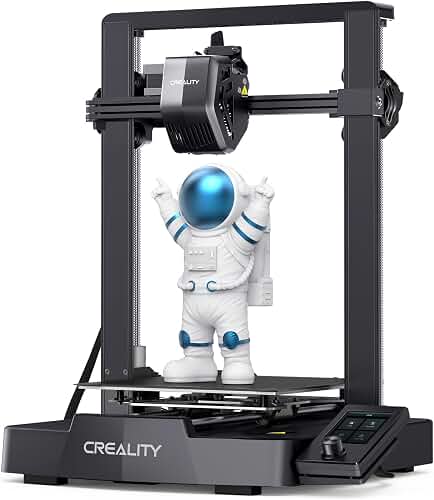
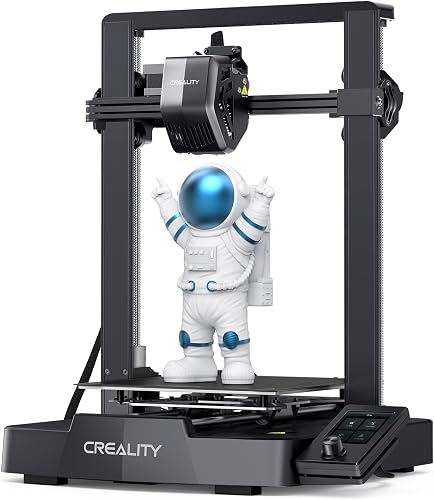
The Ender 3 V3 KE is Creality's Klipper-powered Core-XZ machine with a 220x220x240 mm build volume, input shaping, pressure advance, and a direct drive sprite extruder. Those features matter for snap-fit parts because the geometry that makes a clip work — a thin cantilever beam with a precise undercut hook — is exactly the kind of detail that gets blurred by ringing, over-extrusion, and corner bulging on uncalibrated machines. The KE's accelerations of up to 8,000 mm/s² combined with proper input shaping mean you can print clip geometry cleanly at 200-300 mm/s without losing the dimensional accuracy that snap fits depend on.
The best how to print snap fit arduino enclosures on ender 3 v3 ke for your situation depends on how you plan to use it and where.
Most off-the-shelf Arduino UNO, Nano, Mega, and ESP32 enclosure STLs on Printables, Thingiverse, and MakerWorld were designed for slower, less accurate printers. The Ender 3 V3 KE can hit those tolerances out of the box once you complete a basic calibration pass. If you are still deciding on hardware, our Creality Ender 3 V3 SE review covers the cheaper sibling, and our 3D printer buying guide compares the KE with other sub-$300 options.
Step 1: Choose or Design a Snap-Fit Arduino Enclosure
Before you can print well, you need a model whose snap geometry is actually achievable on FDM. Look for these features:
- Cantilever clips, not annular snaps. Cantilever beams flex predictably along the X-Y plane and don't require pulling the lid apart radially.
- Clip thickness between 1.6 and 2.4 mm. Thinner clips snap off; thicker clips require too much force and crack the housing.
- A lead-in chamfer of 0.4-0.8 mm on the hook so the lid self-aligns as it closes.
- An undercut depth of 0.6-1.0 mm for a positive, audible click without permanent deformation.
- Standoff bosses at the official Arduino mounting hole locations — for a UNO R3 those are at 1.4", 2.7", 1.3", and 0.2" reference offsets.
If you are designing from scratch in Fusion 360, OnShape, or FreeCAD, start the clip as a 2 mm thick beam 8-12 mm long, then add a 1 mm tall hook with a 30-45 degree lead-in ramp and a 90 degree retention face. For ESP32 DevKit, NodeMCU, and Mega 2560 boards, scale the boss spacing to that board's spec sheet, not the UNO template.
Step 2: Slicer Settings That Make Clips Actually Click
Creality Print 5.x and Orca Slicer both ship with Ender 3 V3 KE profiles. Start from the stock profile, then change these values for snap-fit work:
- Layer height: 0.20 mm. Going to 0.12 mm sounds appealing but makes thin clips weaker because each layer has less polymer to bond with the next.
- Line width: 0.42 mm with a 0.4 mm nozzle. This gives clips that are exactly 2 walls wide when modeled at 1.68 mm.
- Walls (perimeters): 3. This makes clips functionally solid without relying on infill.
- Top/bottom layers: 5. Prevents pillowing on lid surfaces where clips emerge.
- Infill: 25% gyroid. Gyroid distributes stress isotropically, which matters when a clip transmits load into the housing.
- Print speed: 200 mm/s outer wall, 250 mm/s inner wall, 80 mm/s for overhangs.
- Pressure advance: Run the KE's built-in calibration; typical values land between 0.030 and 0.045 for PLA and 0.045-0.060 for PETG.
- Horizontal expansion / XY compensation: -0.05 to -0.10 mm. This is the single most important setting for snap fits — it shrinks holes and shafts equally so a 0.25 mm modeled clearance actually measures 0.25 mm on the print.
- Seam position: Aligned, on a back face — never on the clip itself.
Need a refresher on what those parameters actually do? Our how does a 3D printer work explainer covers the underlying mechanics.
Step 3: Orient the Print So Clips Don't Snap Off
Layer adhesion is the weak axis of any FDM part. A cantilever clip printed with its bending direction perpendicular to the layer lines will delaminate on the first lid removal. The fix is orientation, not stronger filament.
Place the lid with snap fingers pointing upward in Z, and rotate the lid so the bending direction of each finger lies along the X or Y axis — not Z. For most rectangular Arduino lids that means printing the lid upside down, with the clip tips at the top of the print and the visible top surface on the build plate. Pair this with a 5-10 second brim or 3-line skirt for adhesion, and enable tree supports only if the lid has internal pockets.
For the enclosure body, print it open-side-up so the wall-to-floor fillets and clip-receiving slots are formed by the bed, not by bridging. This also lets you skip supports entirely on most UNO and Nano boxes.
Step 4: Pick a Filament That Actually Flexes
Standard PLA prints beautifully on the KE but is too brittle for snap fits that will be opened more than a handful of times. Your three realistic choices are:
- Tough PLA / PLA+: Polymaker PolyTerra Tough, eSUN PLA+, or Sunlu PLA Meta. Easy to print, low warp, survives 20-50 snap cycles for indoor enclosures.
- PETG: Overture, Sunlu, or Creality Hyper PETG. The best all-around choice for Arduino enclosures — flexible enough for hundreds of snap cycles, heat tolerant to about 75 C so it survives a hot car or a powered project that runs warm.
- PCTG or ABS: Overkill for most hobby projects and ABS requires an enclosure to print without warping. Skip these unless your enclosure lives outdoors or near heat.
If you are new to filament selection, our PLA filament guide walks through grades, additives, and storage. For long-term reliability on a machine you'll be running a lot, our 3D printer maintenance guide covers nozzle changes, belt tension, and PEI bed care that keep clip tolerances repeatable.
Step 5: Calibrate Once, Print Forever
Snap fits succeed or fail on dimensional accuracy. Run this short calibration sequence on the KE before your first real enclosure print:
- Auto bed level using the KE's built-in CR Touch.
- Flow calibration: print Orca's flow calibration test and adjust until top surfaces are flat without gaps or over-extrusion ridges.
- Pressure advance: run the KE's tower test; corners should be sharp, not bulged.
- Tolerance test: print a clearance comb (any Printables search for "tolerance test" works) and note which gap value yields a snug-but-removable fit. That value is your target modeled clearance for clips.
- Input shaping: the KE auto-calibrates input shaping on first boot — re-run it after any belt tension change.
Skipping any of these steps will result in clips that are either too tight (cracking on first close) or too loose (no audible click and no retention). For more on dialing in a fresh machine, see our first 3D printer setup guide and the bed leveling walkthrough.
Step 6: Print the Enclosure
With the lid oriented clips-up and the body oriented open-up, slice both parts in the same plate. Expected print times on the KE at the settings above:
- Arduino UNO enclosure (75x60x25 mm): 1 h 10 min, ~22 g filament
- Arduino Mega enclosure (115x65x30 mm): 1 h 50 min, ~38 g filament
- ESP32 DevKit enclosure (60x35x20 mm): 45 min, ~14 g filament
- Nano enclosure (50x25x18 mm): 30 min, ~9 g filament
Let the parts cool fully on the PEI plate before flexing them — PLA and PETG continue to crystallize for several minutes after the heater turns off, and forcing the lid on while the polymer is still soft will permanently deform the hook.
Step 7: Test and Iterate Tolerance
The first time you close the lid, listen for the click and feel the resistance. If the lid falls off under its own weight, increase the hook undercut by 0.2 mm and reprint just the lid. If the lid requires two thumbs of force and the clip whitens (stress-marks the polymer), increase the modeled clearance by 0.1 mm. Two iterations is usually enough — keep notes in your slicer profile so the next enclosure you design hits the target on the first try.
Common Failure Modes and Fixes
Clip snaps off on first close. Layer adhesion failure — reorient so the bending axis is parallel to layer lines, or switch from PLA to PETG.
Lid wobbles after closing. Clearance too generous; reduce horizontal expansion or shrink modeled gap by 0.1 mm.
Hook tears through the housing wall. The receiving wall is too thin; thicken it to at least 2 mm or add a rib behind the catch surface.
Top surface pillows above the clip. Increase top layers from 5 to 7, or enable ironing at 80% flow.
Clip prints fuzzy. Input shaping needs recalibration, or the part-cooling fan is undersized for the print speed — drop outer wall speed to 120 mm/s.
For broader troubleshooting beyond snap fits, our 3D printer troubleshooting guide covers stringing, layer shifts, and adhesion failures.
Frequently Asked Questions
What clearance should I use for snap fit clips on the Ender 3 V3 KE?
Start with 0.25 mm of clearance between the hook and the catch surface, and 0.20 mm around the clip beam. After calibrating flow and applying -0.05 mm horizontal expansion, those modeled values typically print within 0.02 mm of nominal. If your tolerance comb test shows a different sweet spot, use that number instead.
Is PLA strong enough for Arduino enclosure snap fits?
Standard PLA works for enclosures you'll open a few times but becomes brittle within months, especially in warm or sunny rooms. Tough PLA or PLA+ doubles the cycle life, and PETG can survive hundreds of openings while tolerating mild heat from a powered Arduino. For permanent installs, PETG is the right default.
Do I need supports to print an Arduino enclosure on the Ender 3 V3 KE?
Usually no. Orient the body open-side up and the lid upside down (clips pointing up) and the only overhangs left are short bridges over USB and power cutouts, which the KE handles cleanly under 10 mm. Only enable tree supports if your lid has interior pockets deeper than 5 mm.
What layer height is best for snap-fit parts on the Ender 3 V3 KE?
0.20 mm is the sweet spot. It keeps individual layer adhesion strong while resolving lead-in chamfers and hook geometry cleanly. Going thinner to 0.12 mm makes clips weaker because each layer carries less cross-section, and going thicker to 0.28 mm makes the click feel mushy.
Can I use the Ender 3 V3 KE's high-speed mode for snap-fit clips?
Yes, after calibration. Run input shaping, pressure advance, and a flow test, then print outer walls at 200 mm/s and inner walls at 250 mm/s with a 0.20 mm layer. Without calibration the corners ring and clips lose their flat retention face, so don't skip the setup.
How do I stop my snap-fit lid from cracking when I close it?
Cracks come from one of three things: layer adhesion in the wrong direction (reorient), too little clearance (add 0.1 mm), or brittle filament (switch from PLA to PETG or PLA+). Also confirm the clip beam is at least 1.6 mm thick and at least 8 mm long — a stubby clip has no room to flex.
Will Arduino enclosures designed for Bambu or Prusa printers work on the Ender 3 V3 KE?
Yes. The geometry is printer-agnostic; what matters is your tolerance calibration. After running the calibration sequence above, STLs designed on a Bambu P1S or Prusa MK4 will print and snap correctly on the KE. If a model was designed with negative clearance for a specific machine's overextrusion, you may need to widen slots by 0.1 mm.
Final Thoughts
Snap-fit Arduino enclosures are one of the most satisfying things you can make on an Ender 3 V3 KE — small, fast, useful, and a real test of how well your machine is dialed in. Get the orientation right, calibrate once, pick PETG or tough PLA, and the same workflow scales from a 9-gram Nano case to a full Mega 2560 housing with cable glands and DIN-rail mounts. The KE has more than enough accuracy and speed to make this a 45-minute project rather than an all-evening one.
Key Takeaways
- Choosing the right how to print snap fit arduino enclosures on ender 3 v3 ke means matching the key features to your specific needs and budget
- Read real customer reviews and check the return policy before you commit
- Also covers: ender 3 v3 ke project box settings
- Also covers: arduino uno enclosure cura profile ke
- Also covers: snap fit tolerance ender 3 v3 ke
- Compare value across models — the priciest option is not always the best fit